Monster Hunter Wilds GPU Benchmarks and Best Settings Guide: Unlocking More FPS for Better Hunting Experiences
Graphics Cards
- Monster Hunter Wilds GPU Benchmarks: Testing the RTX 5090, 5080, 5070 Ti, and 5070
- Monster Hunter Wilds Graphics Settings Guide
- Monster Hunter Wilds: Enjoy the Best Possible Monster Hunter Experience
Monster Hunter Wilds (MH Wilds) is one of the most anticipated games of this year, and it’s already broken several records with a whopping 8 million copies sold in a week!
What’s more, not only does the game look absolutely stunning with Ray Tracing enabled, high-res textures, and at higher detail settings and higher resolutions, but it’s also tons of fun, especially when you’re playing as a group of hunters who’re all trying their best not to cart to a very cheesed-off Arkveld.
That said, it’s an understatement to say that even last-gen mid-range hardware is struggling to deliver a smooth 60 FPS at even 1440p with medium details, let alone at 4K. If you want to deal with the monstrosities in Monster Hunter Wilds high rank, it’s important to maintain a steady, playable FPS.
So, what does it take to do this?
Monster Hunter Wilds GPU Benchmarks: Testing the RTX 5090, 5080, 5070 Ti, and 5070 at 1080p, 1440p, and 4K
Since the gamers in our labs were as excited about Monster Hunter Wilds as anyone else, we tasked them with putting together a benchmark to judge how the latest RTX 50-series graphics cards perform in this demanding title.
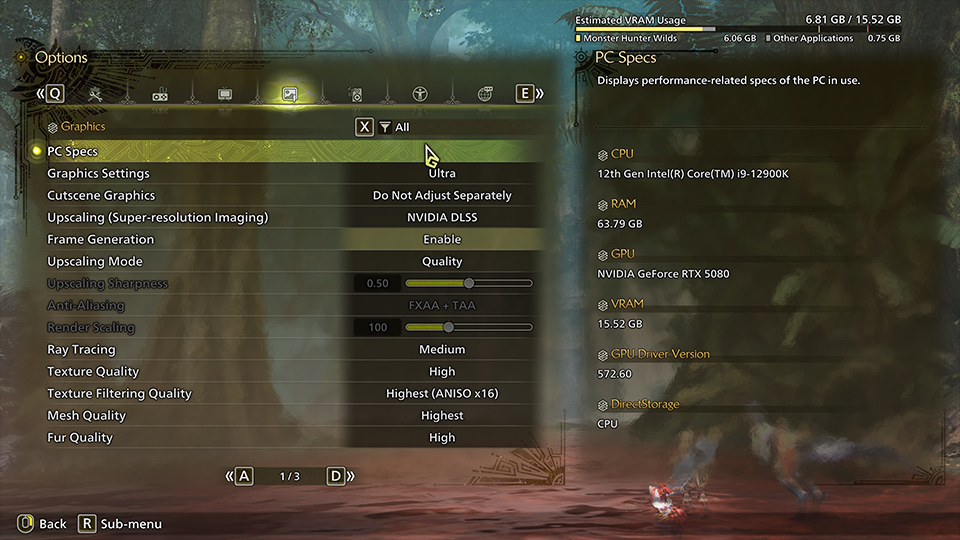
Monster Hunter Wilds Best Game Settings
All the following tests were run at ‘Ultra’ quality settings with Ray Tracing set to ‘Medium’, Multi-Frame Generation set to ‘ON’, and a DLSS 4 Override (using NVIDIA Profile Inspector) to leverage the quality improvements of NVIDIA’s new transformer upscaling model.
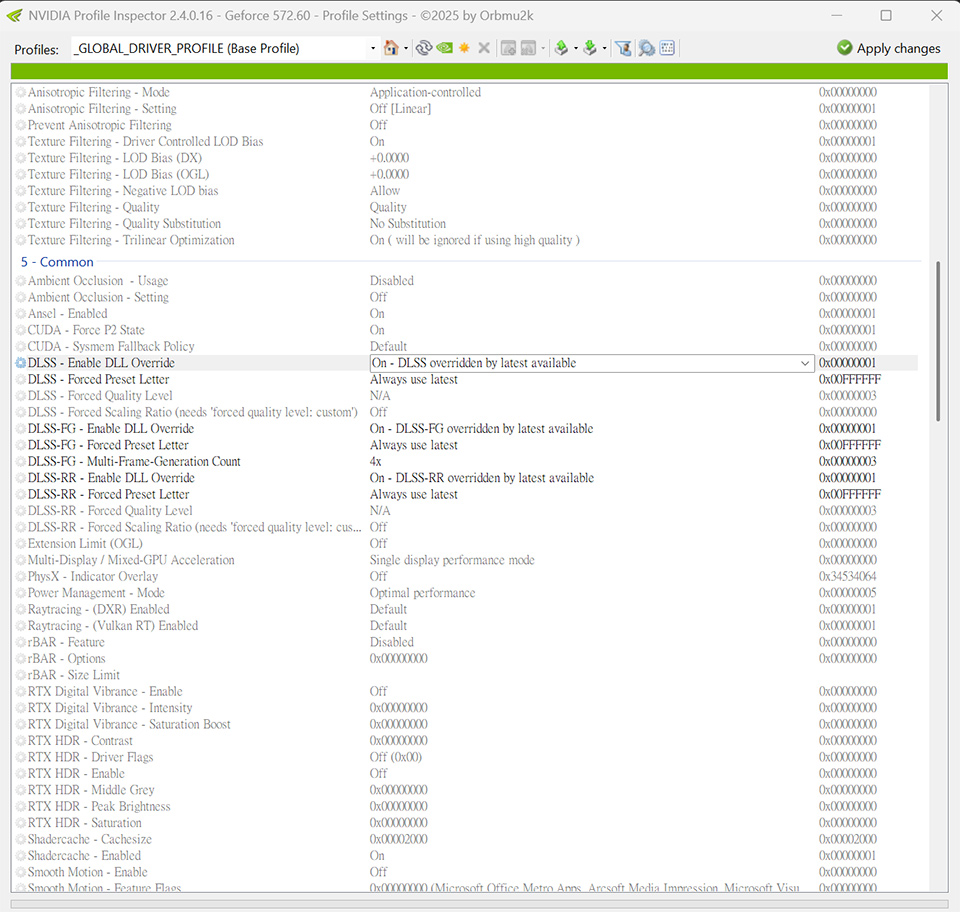
NVIDIA Inspector Override Mode
The power limits and clocks on the graphics cards were untouched (no overclocking) and we measured performance using MSI Afterburner.
1080p Benchmark @ Ultra, Medium RT, MFG ON, DLSS 4 ON
At this resolution, none of the graphics cards in the RTX 50-series lineup have any issues delivering a playable experience. In fact, the RTX 5070 manages a respectable average FPS of 144, while sipping just 180W of power. The RTX 5090, on the other hand, is in a class of its own – delivering an incredible 251 FPS while drawing 375W of power.
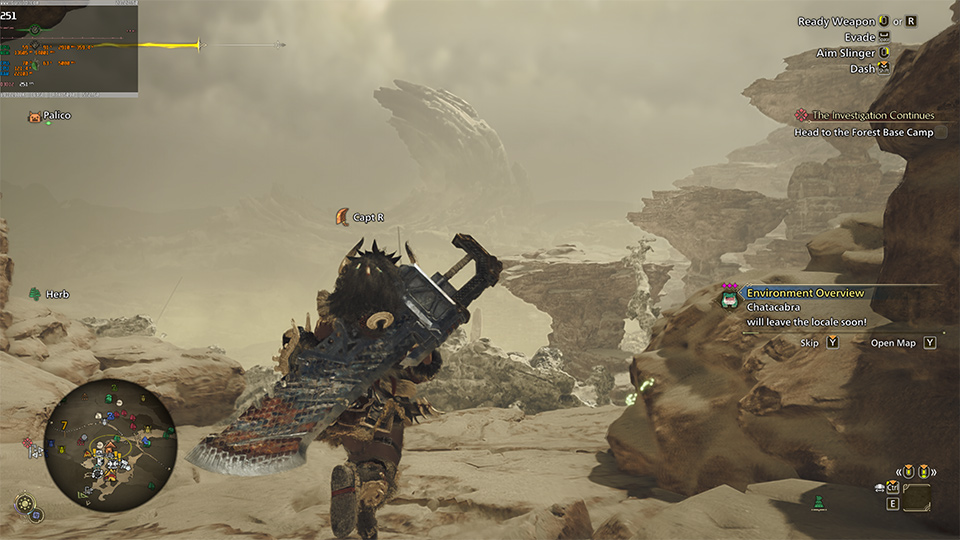
Monster Hunter Wilds RTX 5090 @1080p, Ultra, Medium RT, MFG ON, DLSS 4 ON
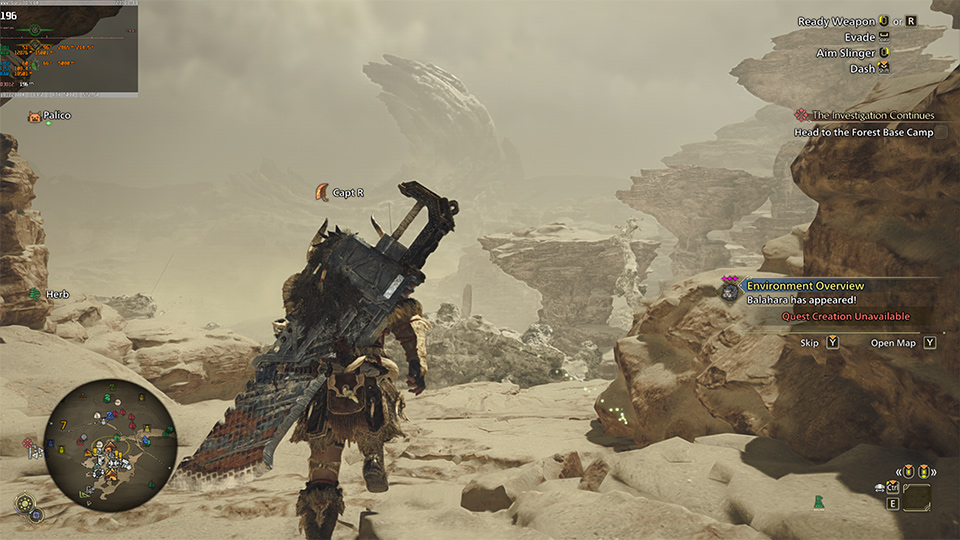
Monster Hunter Wilds RTX 5080 @1080p, Ultra, Medium RT, MFG ON, DLSS 4 ON
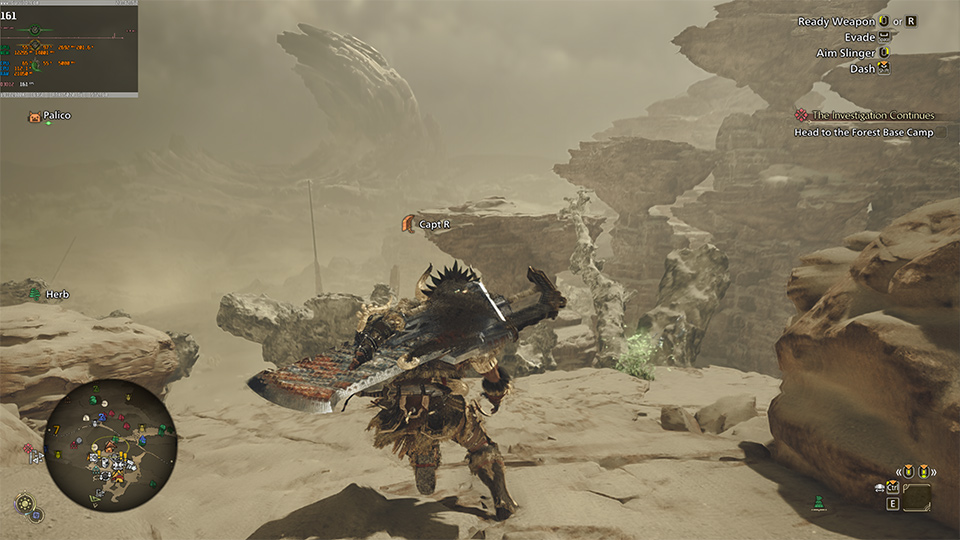
Monster Hunter Wilds RTX 5070 Ti @1080p, Ultra, Medium RT, MFG ON, DLSS 4 ON
Although mainstream last-gen offerings like the RTX 4060 Ti and 4070 Ti SUPER can’t hit a stable 120 FPS like their 50-series counterparts, the latter gets close enough and the former manages a respectable average FPS of 74.
If you’re picking a new graphics card to play games like Monster Hunter Wilds at 1080p, you can’t go wrong with something like an RTX 5070 or RTX 5070 Ti. However, if you plan to upgrade your monitor to higher resolutions soon, it’s a good idea to grab a more powerful graphics card right away as you’ll see in the results below.
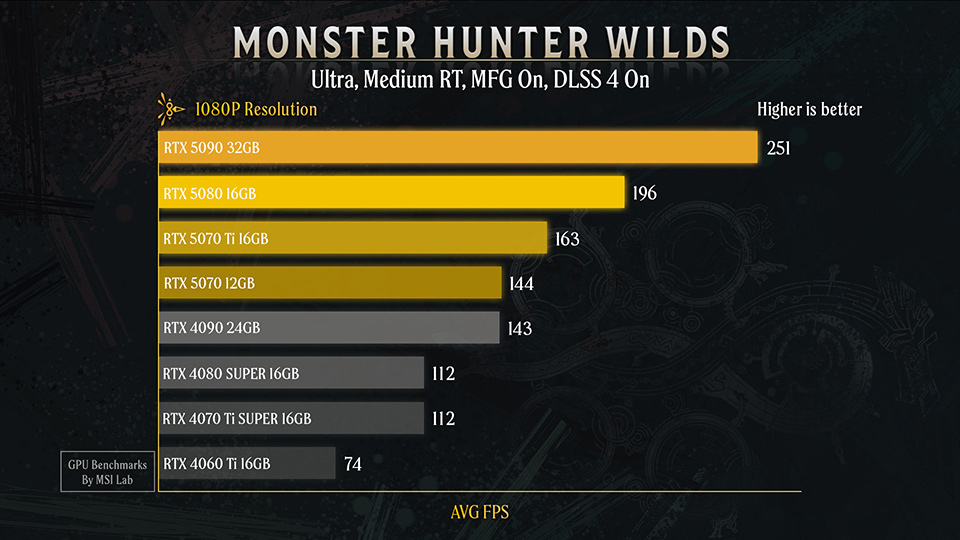
Monster Hunter Wilds RTX 50 GPU @1080p, Ultra, Medium RT, MFG ON, DLSS 4 ON
1440p Benchmark @ Ultra, Medium RT, MFG ON, DLSS 4 ON
Bumping the resolution up to a more demanding 1440p does change the performance landscape a bit, but the RTX 50-series still shines. The RTX 5070 only takes a bit of a hit to performance with an average FPS of 129. On the other hand, the RTX 5090, again, takes the crown easily with a whopping 240 FPS even at this demanding resolution.
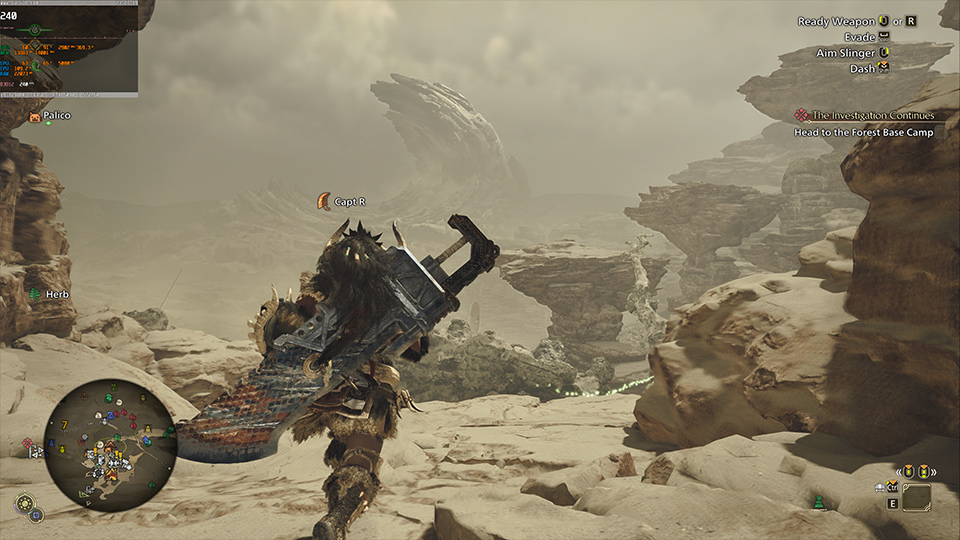
Monster Hunter Wilds RTX 5090 @1440p, Ultra, Medium RT, MFG ON, DLSS 4 ON
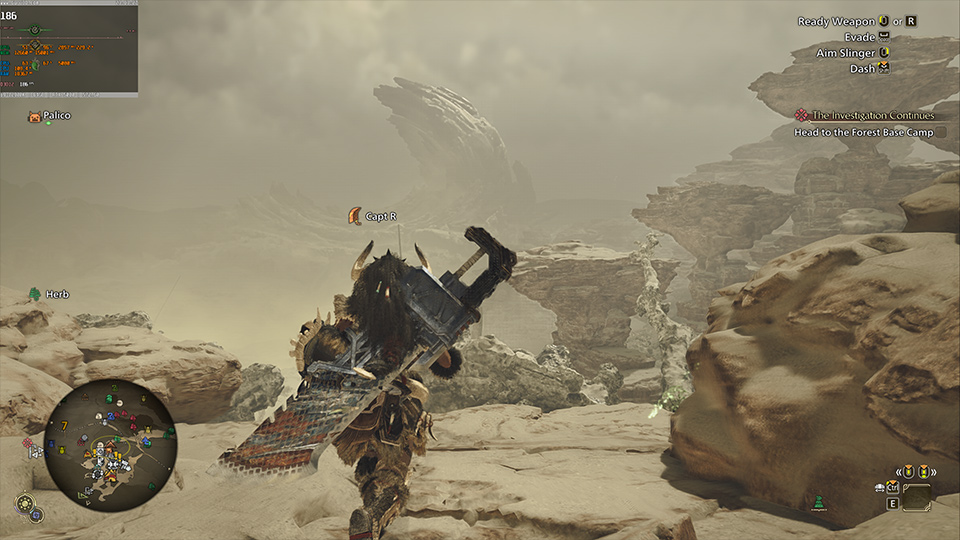
Monster Hunter Wilds RTX 5080 @1440p, Ultra, Medium RT, MFG ON, DLSS 4 ON
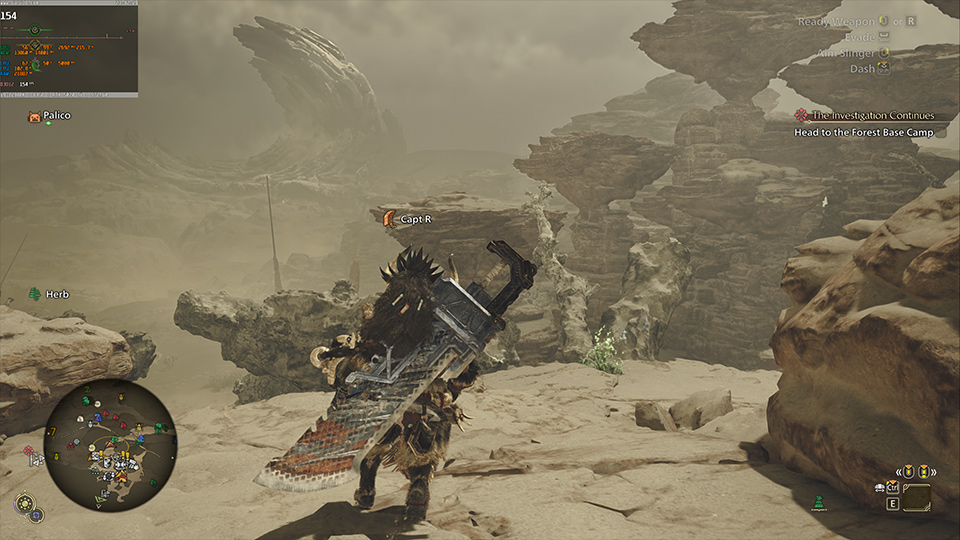
Monster Hunter Wilds RTX 5070 Ti @1440p, Ultra, Medium RT, MFG ON, DLSS 4 ON
Its mainstream RTX 40-series counterparts, unfortunately, don’t fare so well with the RTX 4060 Ti dropping very close to the 60 FPS mark (average FPS of 62). The 4070 Ti SUPER still manages to hold its own with a healthy 100 FPS. That said, both offer a completely playable experiences as long as you don’t mind turning down a few settings to get a smooth frame rate and reduce input latency.
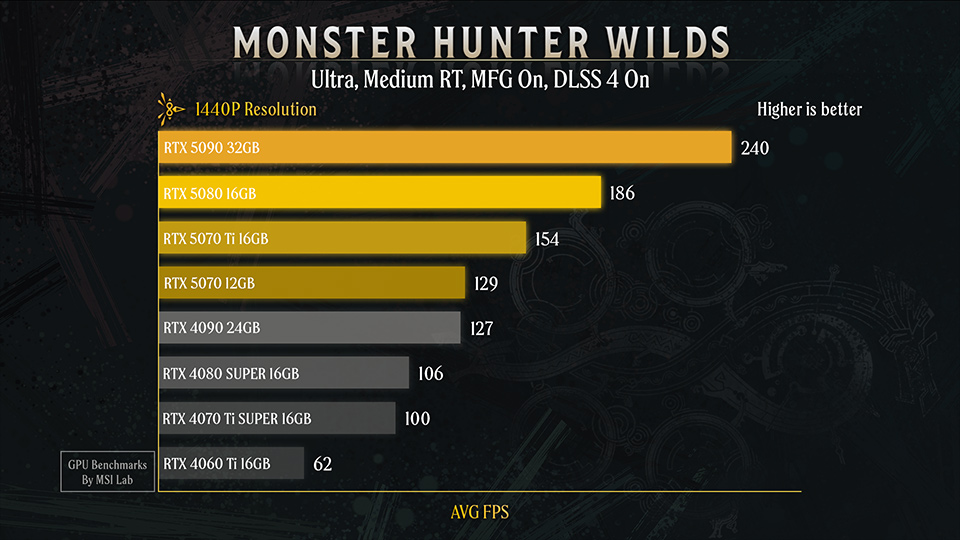
Monster Hunter Wilds RTX 50 GPU @1440p, Ultra, Medium RT, MFG ON, DLSS 4 ON
4K Benchmark @ Ultra, Medium RT, MFG ON, DLSS 4 ON
Last-gen RTX 40-series graphics cards start to flounder at this resolution – with the RTX 4060 Ti dipping down to a sub-par average FPS of 43. The RTX 4070 Ti SUPER and RTX 4080 SUPER barely manage to keep their head above the water with averages of 74 and 83 respectively.
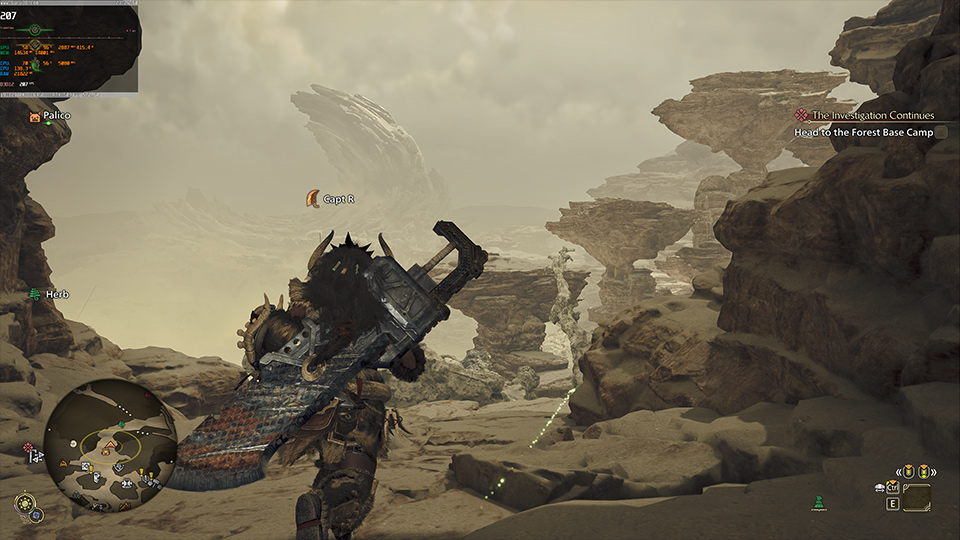
Monster Hunter Wilds RTX 5090 @4K, Ultra, Medium RT, MFG ON, DLSS 4 ON
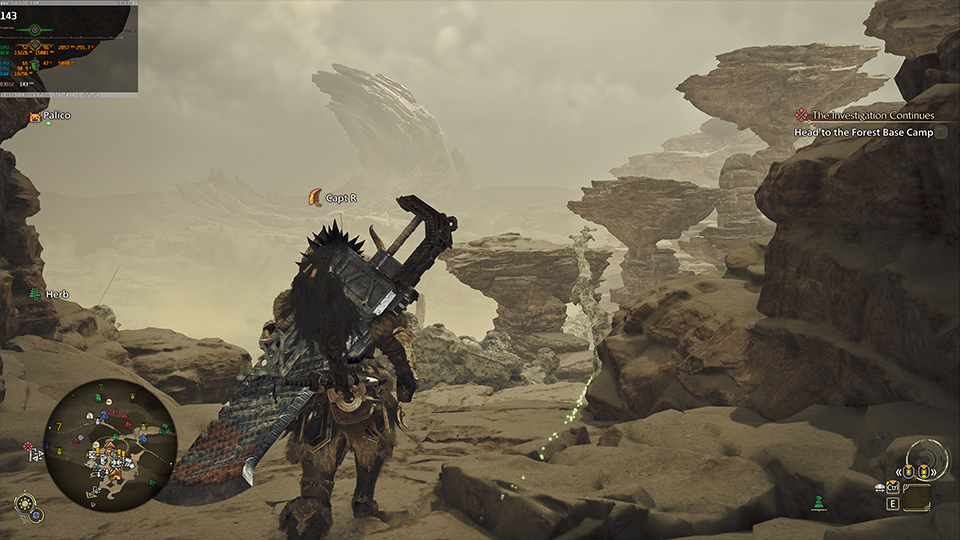
Monster Hunter Wilds RTX 5080 @4K, Ultra, Medium RT, MFG ON, DLSS 4 ON
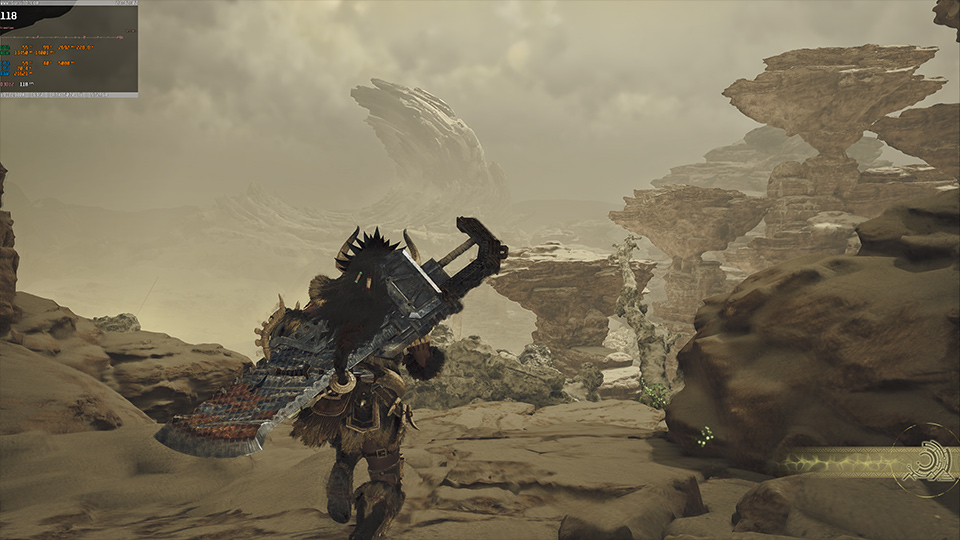
Monster Hunter Wilds RTX 5070 Ti @4K, Ultra, Medium RT, MFG ON, DLSS 4 ON
The RTX 50-Series coupled with NVIDIA’s latest neural rendering technology deliver an excellent experience across the lineup, with even the RTX 5070 giving you access to a smooth 99 FPS. Of course, even with DLSS Multi-Frame Generation enabled, only moving up to the RTX 5070 Ti will allow your PC to handle the stress of playing Monster Hunter Wilds at a crisp 4K while also enjoying a rock-solid 120+ FPS (with a few settings tweaks) on high refresh rate monitors.

Monster Hunter Wilds RTX 50 GPU @4K, Ultra, Medium RT, MFG ON, DLSS 4 ON
As expected, the RTX 5090 is in a class of its own with an incredible average of 207 FPS at 4K Ultra with Ray Tracing ENABLED. It’s the perfect pick for 4K high-refresh-rate gaming if you detest compromises.
Monster Hunter Wilds
RTX 5090 32G
RTX 5080 16GB
RTX 5070 Ti 16GB
RTX 5070 12GB
RTX 4090 24GB
RTX 4080 SUPER 16GB
RTX 4070 Ti SUPER 16GB
RTX 4060 Ti 16GB
1080p
251
196
163
144
143
112
112
74
1440p
240
186
154
129
127
106
100
62
4K
207
143
118
99
109
83
74
43
Monster Hunter Wilds Graphics Settings Guide: Getting More Performance Without Losing Too Much Visual Fidelity
The very best way to enjoy the vibrant world of Monster Hunter Wilds is by upgrading to a more modern graphics card to enable incredible visuals. However, that’s not always an option.
If you can’t upgrade your PC yet, it’s time to start the somewhat arduous song and dance of turning down graphics settings until you hit playable frame rates.
Although you could go with the nuclear option and just turn everything down, MH Wilds tends to look pretty awful past a certain point.
So, here’s a short guide to a few settings that matter (and some that don’t affect performance too much).
Now, first – make sure your graphics preset is set to ‘High’ before you start to go down this list and tweak your settings.

- Upscaling and Upscaling Mode: Pick DLSS or FSR depending on whether you’re using an NVIDIA or AMD Radeon graphics. Set your Upscaling Mode to ‘Quality’ first, and if at the end of this guide, you still need more performance, dial it down to ‘Balanced’ or ‘Performance’.
- Ray Tracing: Set RT to ‘OFF’ unless you have a modern GeForce RTX Graphics Card that can handle real-time Ray Tracing. Even if you enable it, set it to ‘Low’ because the uplift in quality past that point isn’t worth the amount of performance you sacrifice.
- Texture Quality – As High as possible: In our tests, picking higher texture quality didn’t affect performance too much. So, you can safely go as high as possible as long as you don’t exceed your VRAM (displayed on the top right).
- Texture Filtering – Medium (ANISO X4): Ideally, you want this set no lower than ‘Medium (ANISO x4)’ to enjoy cleaner textures when viewing them at certain angles.
- Fur Quality – Low: This one can be set to ‘Low’ without affecting quality too much, and you gain some performance in the bargain.
- Sky/Cloud Quality – Lowest: This setting gives you a good way to free up some VRAM because the quality uplift isn’t very noticeable even at the highest setting.
- Grass/Tree Quality – Low: With DLSS/FSR upscaling enabled, the higher quantity of grass on the ground tends to cause shimmering. The lower settings look better when upscaling is enabled, while also allowing you to quickly spot endemic life (Paratoads anyone?).
- Grass/Tree Sway – Enabled: Disabling sway doesn’t improve performance by much, and leaving it enabled adds a bit more immersion to the Wilds open world.
- Sand/Snow Quality – Low or Medium: The quality improvement by turning this setting up isn’t too noticeable, but its performance impact is very noticeable. If you want a few more FPS, leave this at low or medium.
- Water Effects – Enable: Disabling water effects didn’t seem to impact performance much, but this might be due to it leaning on the CPU more than the GPU. So, your mileage might vary with this one.
- Render Distance – Medium: Dialing down render distance is a great way to get more performance, but you do notice the quality hit when looking at things past a certain distance.
- Shadow Quality – High: Turning up shadows requires a bit of VRAM sacrifice, but the quality improvement is pretty good. Avoid the lowest setting as it looks comically bad and doesn’t give you much of a performance improvement.
- Distant Shadow Quality – Low: Due to our render distance setting above, turning this down won’t affect your visual experience at all and will free up some VRAM.
- Ambient Light Quality – Low: If you want to save a ton of VRAM, set this to low. The visual improvement at higher settings isn’t very noticeable and not worth the amount of VRAM required by it.
- Contact Shadows – Enabled: In our tests, disabling this didn’t really give us a performance boost in most areas, so leaving it enabled is probably the way to go.
- Ambient Occlusion – Medium: There seems to be a very small performance hit to enabling AO, but the details it adds to shadows are noticeable. Leave this at Medium or even High unless your PC is struggling.
- Bloom – Personal Preference: There is no performance impact to Bloom, so go with whatever looks good to you.
- Motion Blur – Off: Motion blur is terrible at higher frame rates. That said, there’s not much of a performance hit to enabling it.
- Screen Space Reflection – On: The drop in quality is drastic when SSR is disabled, so keep it enabled unless your GPU is struggling, and you need every single FPS you can get.
- SSSS Scattering – On: The performance impact is minimal, and the quality improvement is noticeable. It’s better to keep this one enabled.
- Volumetric Fog – Low: This is another performance hog and the improvement to quality of fog just isn’t worth it.
- Variable Rate Shading – Off: Only enable VRS if you’ve turned down everything you can, and your PC still struggles to deliver playable frame rates. The shading becomes fuzzy and grainy and is very noticeable during hunts when you’re moving around a lot.
Monster Hunter Wilds: Enjoy the Best Possible Monster Hunter Experience
Like its predecessors, Monster Hunter Wilds offers an immersive hunting experience that further elevates it when you have access to incredible performance and powerful hardware. You can enable gorgeous RT effects and truly enjoy the astounding detail of the game’s open worlds and unique monsters.
On the other hand, if an upgrade isn’t on the cards (pun intended) yet, our graphics settings guide above should give you a bit more FPS to help you enjoy a somewhat smoother monster hunter experience.
You can find our complete RTX 50-Series lineup here if you’re planning an upgrade – allowing you to enjoy the full extent of gorgeous visuals in modern games like Monster Hunter Wilds.