Why the RTX 5060 and RTX 5060 Ti Are Great Choices for 1080p Gaming with AI Enhancements?
Desktops
1080p gaming remains the mainstream choice in the PC gaming market. According to the latest Steam Hardware and Software Survey, more than 60% of gamers play at 1080p resolution. The most popular graphics cards among these users include the RTX 3060, RTX 4060, RTX 2060, GTX 1060, RTX 3060 Ti, and RTX 4060 Ti, with the rest of the top spots occupied by mobile GPUs. These trends show that the majority of gamers prefer a straightforward and reliable way to enjoy high-quality gaming experiences. While higher resolutions like 1440p and 2160p (4K) can deliver even better visuals and performance, they require more powerful and expensive hardware. For most entertainment needs—whether watching movies or playing PC games—1080p already offers excellent image quality. Because of this, graphics cards like the RTX 5060 and RTX 5060 Ti are expected to be ideal choices for 1080p gamers. These cards will allow new and existing gamers to enjoy smooth, high-quality PC gaming without requiring costly upgrades.
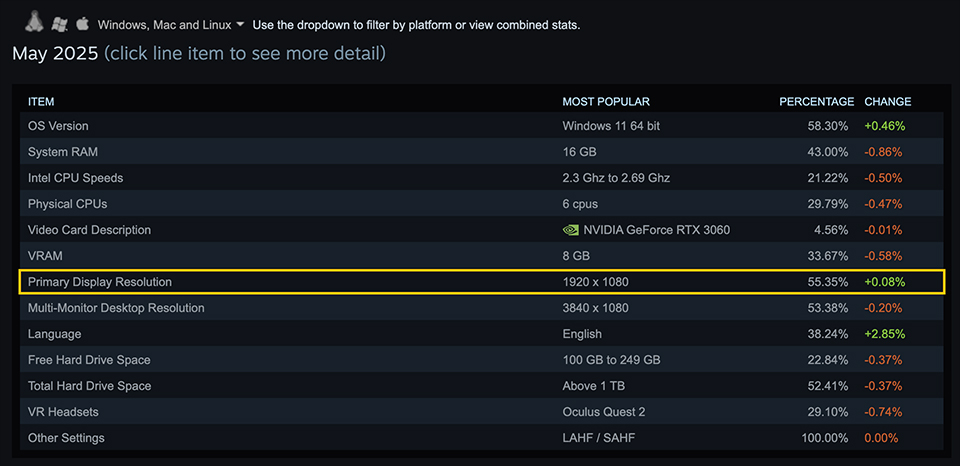
According to the Steam Hardware and Software Survey, most users still game at 1080p resolution (1920 x 1080).
Is VRAM size a big issue?
The size of a graphics card’s VRAM is becoming increasingly important in modern PC gaming. As more game studios use advanced engines like Unreal Engine and Unity, games are offering better graphics and more complex physics to create immersive experiences. These improvements place greater demands on the GPU, especially when games are not well optimized. Larger VRAM capacity can help address performance issues, particularly in games with high-resolution textures or when running at higher resolutions. More VRAM allows the GPU to store more graphical data, reducing the risk of stuttering or slowdowns caused by memory limitations. However, simply increasing VRAM is not a complete solution. The most effective way to improve game performance is still through optimization by game developers. Well-optimized games can run smoothly even on hardware with limited VRAM. For gamers, there are also other ways to boost performance, such as adjusting in-game settings or using AI-powered technologies that enhance graphics without overloading the GPU.

With Unreal Engine support, games achieve realistic graphics that provide a more immersive atmosphere. (The image is captured from the Witcher 4 Tech demo, developed by Unreal Engine 5)
Reduce graphics settings to ensure the game runs smoothly
Modern AAA games are designed with impressive and detailed visuals, but you don’t always need to play on “Ultra” or “High” settings to enjoy the experience. Running games at the highest settings can put a lot of stress on your PC, leading to lower frame rates and a less smooth experience. Instead, adjusting graphics settings to “Normal” or even “Low” can significantly boost performance and make gameplay smoother. At 1080p resolution, it’s often difficult to notice the fine details that higher settings provide, simply because there aren’t enough pixels to display them clearly. Higher resolutions like 1440p and 4K can reveal more detail, but they also require much more powerful hardware to maintain smooth performance.
To achieve the best gaming experience, it’s important to find the right balance between image quality and performance. Lowering demanding settings such as shadows, anti-aliasing, and post-processing effects can provide a substantial FPS boost without drastically reducing visual quality. For most players, especially at 1080p, using medium or low settings ensures smoother gameplay while still delivering good visuals.
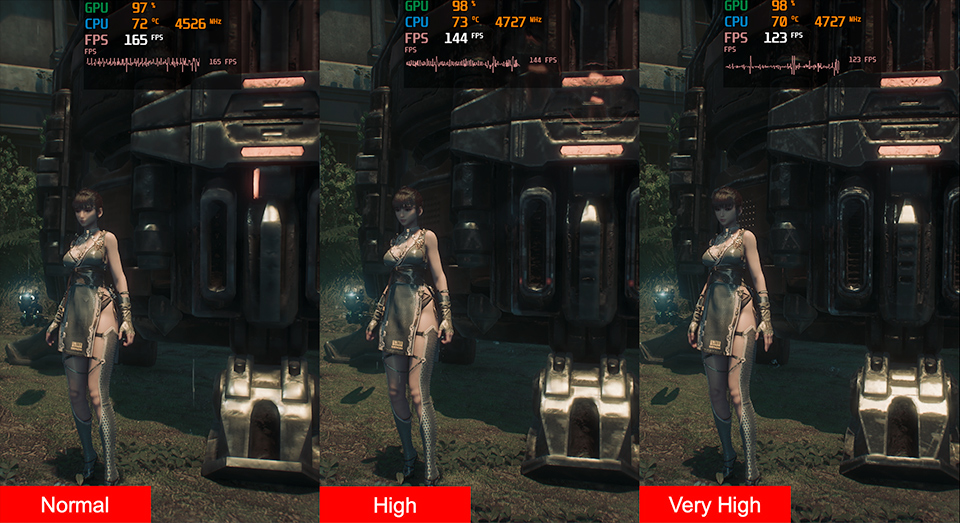
In the game Stellar Blade, we can adjust the graphics settings to achieve higher FPS and get a smoother experience while playing the game. In general, using high or normal will be a good option for 1080p gaming. Some games have very good optimization, so you don’t need to change the settings, can still get a good experience.
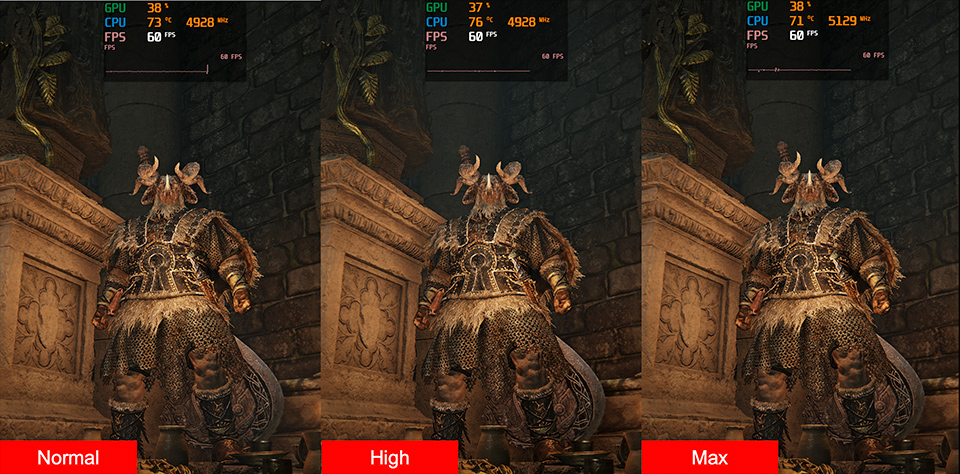
The Elden Ring Nightreign is optimized very well and is locked in 60 FPS. Even if we adjust the graphics setting, it can still provide great image quality and performance.
Use Game AI Features to Boost Frame Rates and Smooth Gameplay.
NVIDIA continues to lead the way in bringing AI technology to PC gaming, with a strong focus on improving the gaming experience for players. One of the most significant advancements is the introduction of Game AI features like DLSS (Deep Learning Super Sampling) and AI-powered frame generation.
DLSS uses advanced AI models to upscale lower-resolution images in real time, delivering sharp, high-quality visuals while reducing the workload on the GPU. This means you can enjoy beautiful graphics and complex in-game physics without sacrificing performance. AI-based frame generation is another breakthrough that helps games run much more smoothly. By generating additional frames between the ones rendered by the GPU, this technology can significantly increase the frame rate, making gameplay feel buttery smooth, even in demanding titles. It not only boosts frame rates for smoother gameplay but also helps overcome hardware and optimization limitations, making modern games more accessible and enjoyable for everyone.
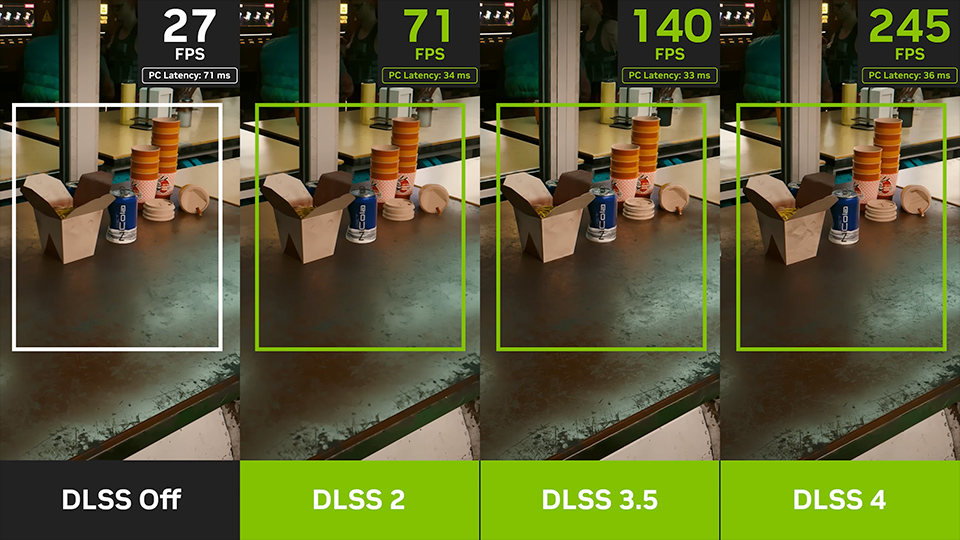
NVIDIA Game AI technology, DLSS, can increase more frames to make the game run more smoothly.
Not Every Game Supports DLSS—What Other Game AI Features Can You Use?
With the launch of the RTX 50 series graphics cards at CES 2025, NVIDIA introduced its latest Game AI technology: DLSS 4. This new version of DLSS brings even more advanced features to PC gaming. These technologies deliver impressive results, but there’s a catch: they must be integrated directly into a game by its developers. As a result, not every game, especially older or less frequently updated titles, supports DLSS or its newest features. To address this gap, NVIDIA has introduced a driver-based AI model that works outside of individual games. This technology, known as NVIDIA Smooth Motion, can infer and generate additional frames between the ones your GPU renders, creating smoother gameplay even in games that don’t officially support DLSS. For gamers playing at 1080p, NVIDIA Smooth Motion is an excellent Game AI tool. It helps deliver a more fluid experience in games that lack built-in DLSS support, making it a valuable feature for anyone looking to boost performance and visual smoothness across a wide variety of titles.
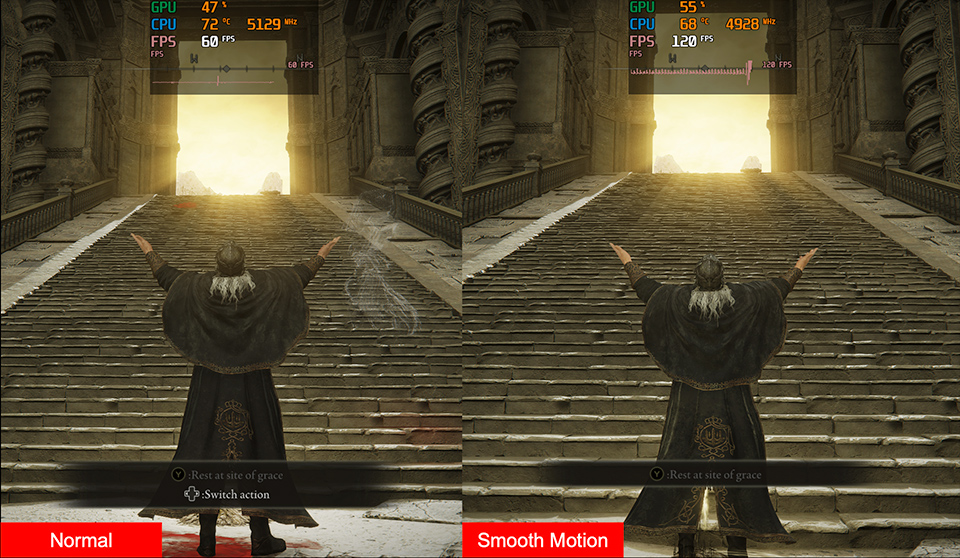
Enable NVIDIA Smooth Motion to get a very good performance on the game. But so far, it’s only available on RTX 50 series graphics cards, and some game seems not to have effects; however, NVIDIA should keep improving this function to fulfill gamers’ demand.
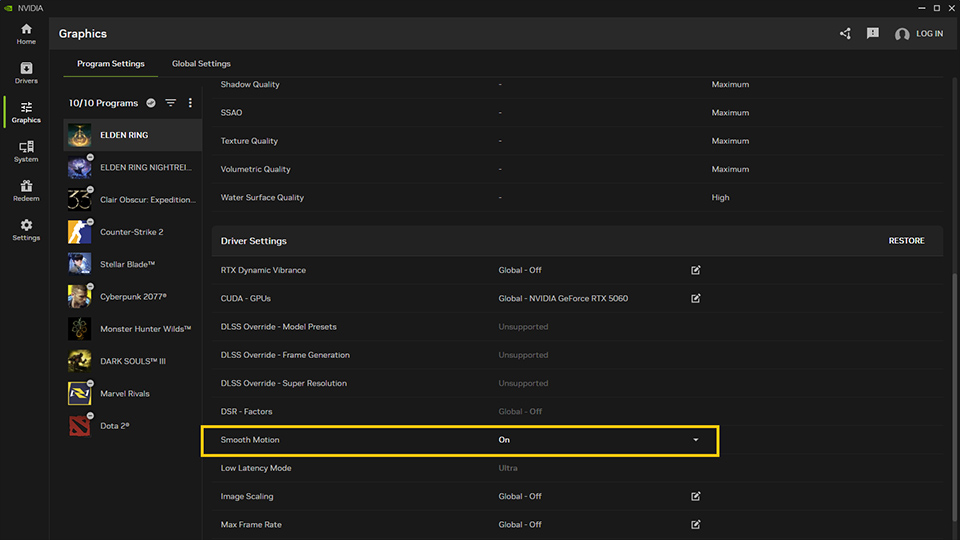
You can follow the next instructions to enable NVIDIA Smooth Motion. Firstly, you need to install the NVIDIA App. Then update the graphics card driver to the latest version. Next, go to the graphics tag and find the game you want to activate Smooth Motion. The change setting to “On” will be done. Then, you can enjoy the smooth experience in the game. Remember to restart the game after switching to NVIDIA Smooth Motion.
We list the recent game's most-played performance table for your reference. It can help you find the best 1080p gaming solution with the MSI Gaming PC.
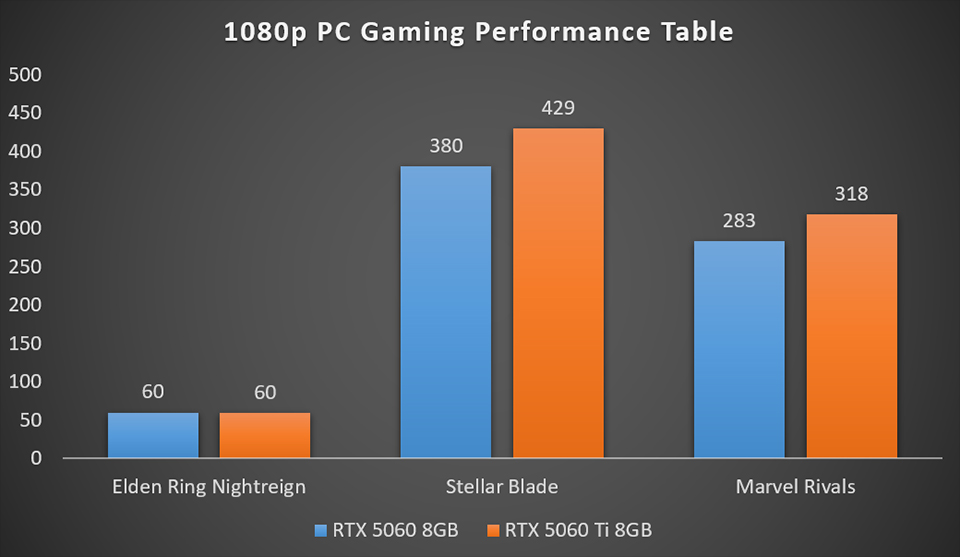
The game test configuration is set up with ultra graphics settings and enables DLSS within multi-frame generation.
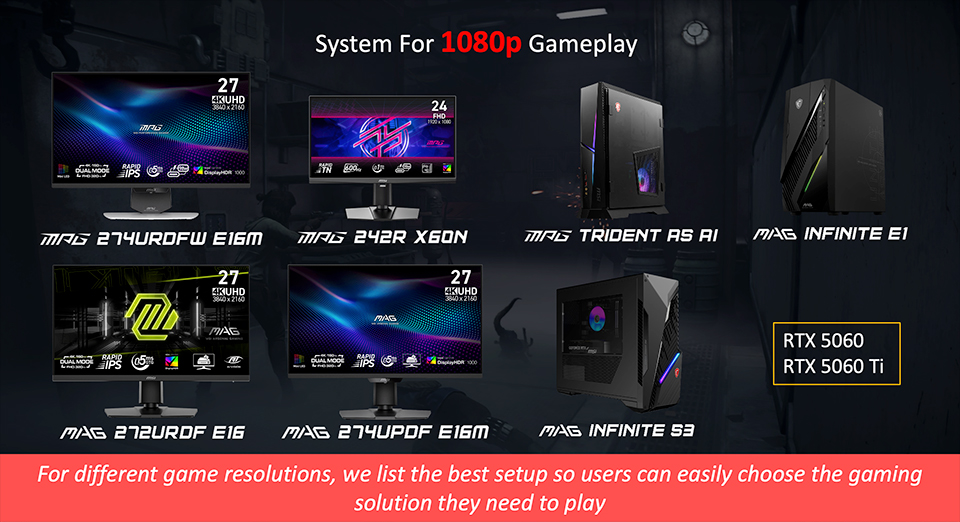

Finally, if you are interested in playing different games on MSI gaming desktops and monitors, you can visit our website to find a suitable setup. Select the game you want to play and your preferred monitor size and resolution, and the system will show you how the game performs.
Game Benchmark: Link
Game Benchmark: Link
MSI Gaming Desktops Feature RTX 5060 and RTX 5060 Ti Graphics Cards
MPG Trident AS AI 2nd
MAG Infinite E1
MAG Infinite S3
MSI AI Gaming Desktop
MPG Trident AS AI 2nd
MAG Infinite E1
MAG Infinite S3
MSI AI Gaming Desktop
MSI Gaming Monitor best for 1080p Gaming
MPG 274URDFW E16M
MPG 242R X60N
MAG 272URDF E16
MAG 274UPDF E16M
MPG 274URDFW E16M
MPG 242R X60N
MAG 272URDF E16
MAG 274UPDF E16M