How to Master Your MPG CORELIQUID P13 with MSI CENTER – Complete LCD Screen Customization Guide
By Dimitri Wwen|January 22,2026
Case & Components
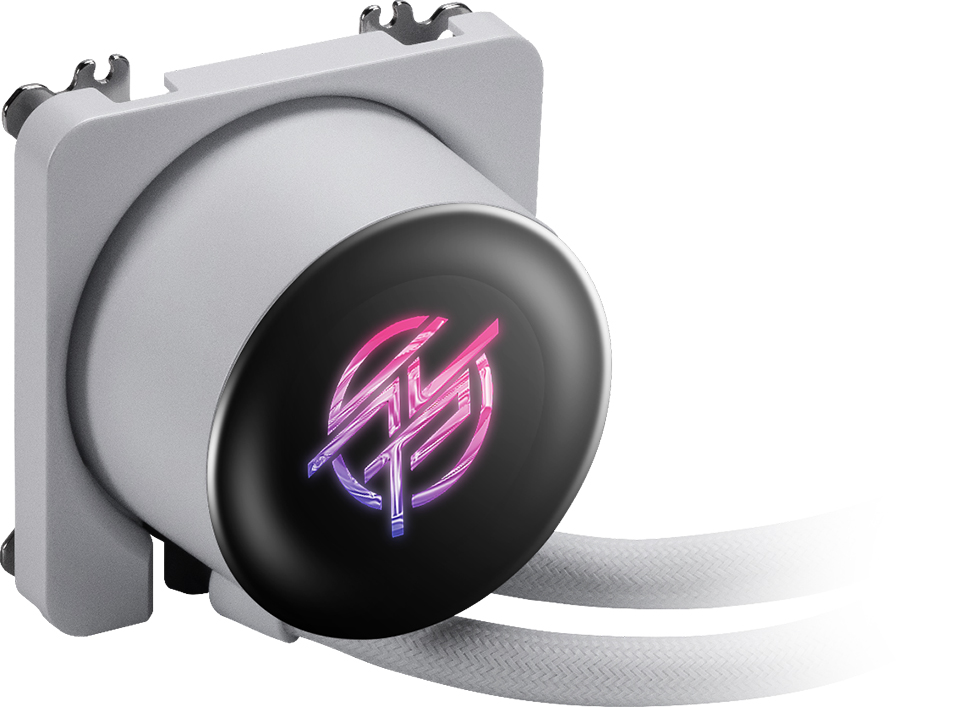
MSI’s MPG CORELIQUID P13 Series liquid coolers are not just powerful cooling solutions — they’re also visual centerpieces designed for ultimate customization. At the heart of this customization lies MSI CENTER, our intuitive software platform that gives users full control over the LCD screen embedded in the cooler.
Whether you want to monitor your system, play a favorite video, showcase real-time clocks, or even expand your desktop display, MSI CENTER makes it all possible — all with just a few clicks.
Before You Begin: Make Sure You’re Up to Date
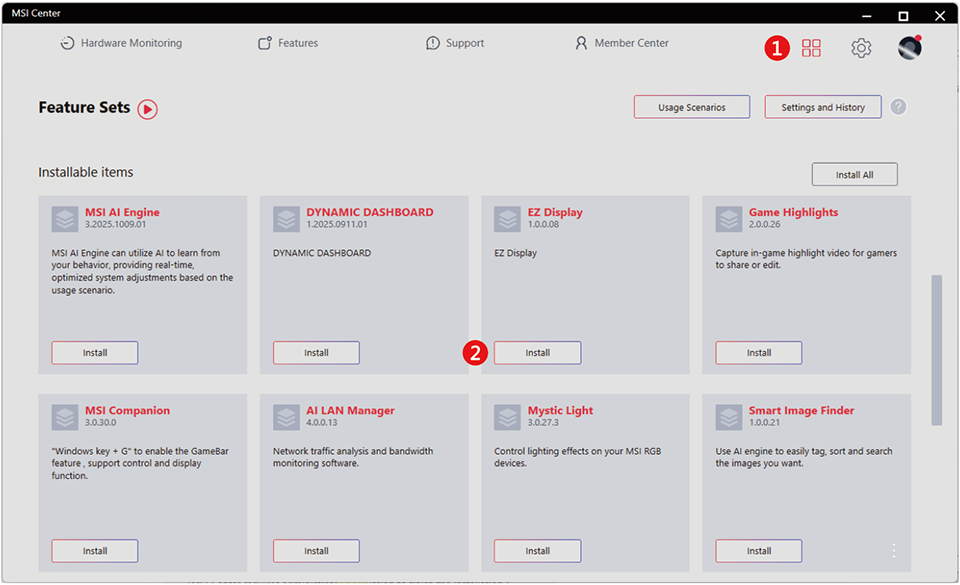
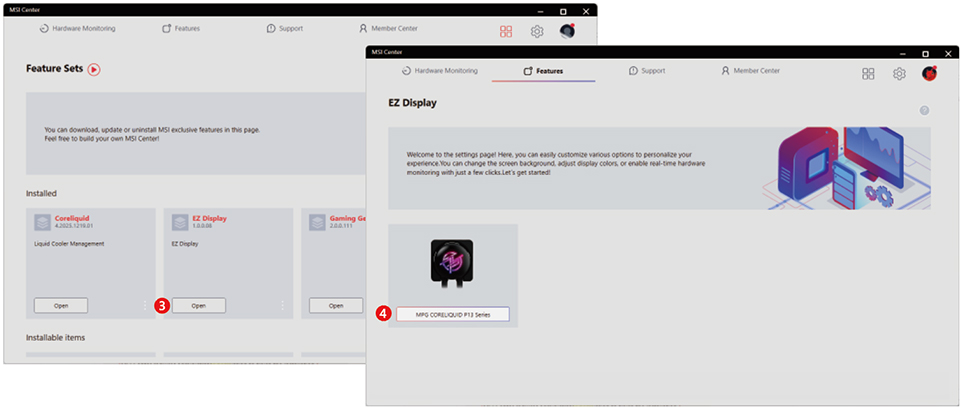
Before diving into the features, ensure that you’ve installed the latest version of MSI CENTER (MSI Center 2.0.65.0 or later). Re-download and install the EZ Display application. This is crucial. MSI CENTER unlocks all key functions of the screen, including:
Tip: MSI CENTER supports all motherboard brands. No matter your setup, MPG CORELIQUID P13's screen features are universally accessible.
Meet the UI: Core Functions at a Glance
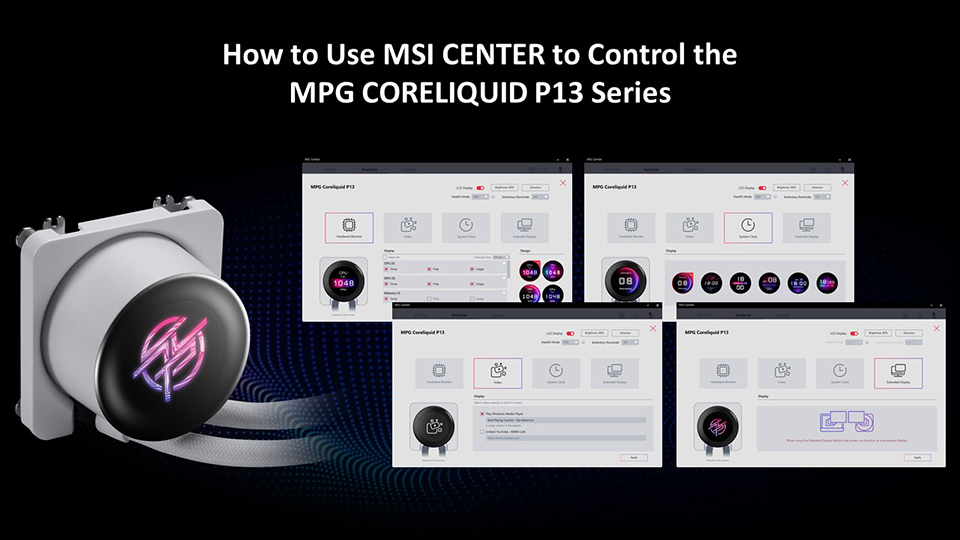
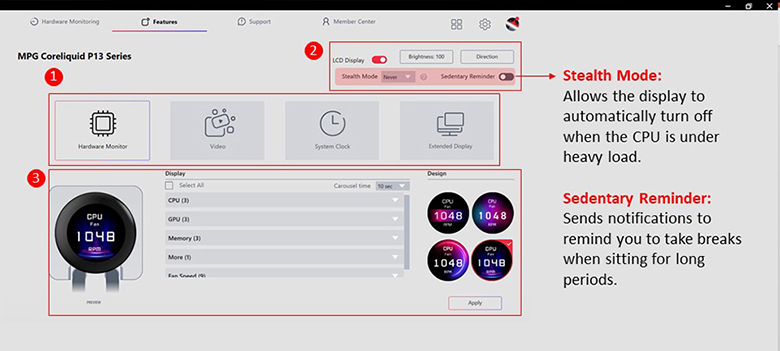
Once your MPG CORELIQUID P13 is connected and recognized, the EZ Display tab will appear in MSI CENTER. From there, you'll gain access to four main screen modes:
Each mode comes with its own unique control panel. Plus, users can adjust brightness and screen orientation for an optimal view — regardless of your PC layout.
Customizing Screen Settings
Adjusting Brightness
Click the Brightness button, and a slider will appear.
Set your desired brightness level (0–100%) and hit Confirm to apply.
Adjusting Orientation
Click Direction to bring up four orientation options.
Select the layout that fits your case, then click Save.
Smart Features You’ll Appreciate
Stealth Mode
Automatically turns off the screen when the CPU is under heavy load — giving you focus and saving power.
Sedentary Reminder
Stay healthy! Enable this to get friendly reminders to stand up and take breaks during long sessions.
How to Customize Hardware Monitoring Display
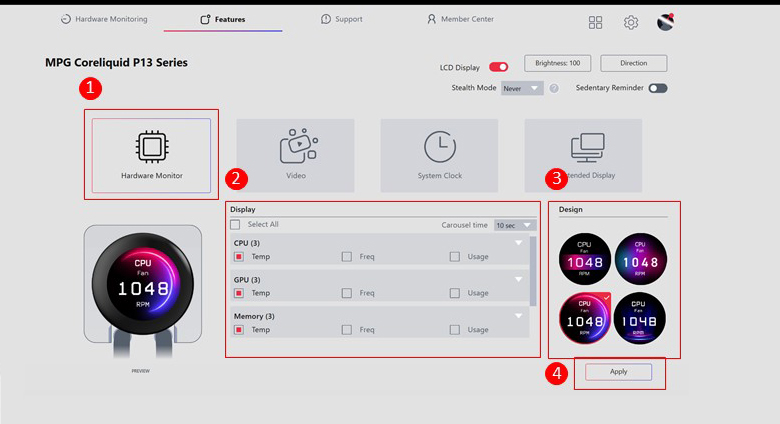
MSI CENTER’s Hardware Monitor Mode transforms your cooler into a real-time data display. Here’s what you can do:
1. Choose data to monitor: CPU, GPU, RAM, fan speed, and more
2. Switch between four built-in dynamic themes
3. Customize what matters to you
4. Click Apply to activate your setup
Perfect for enthusiasts who demand precision, or creators who need performance insights at a glance.
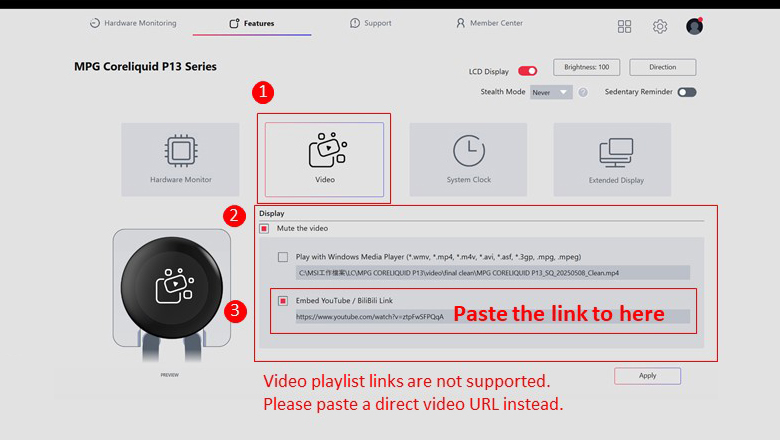
How to Play Local Videos on the LCD Screen
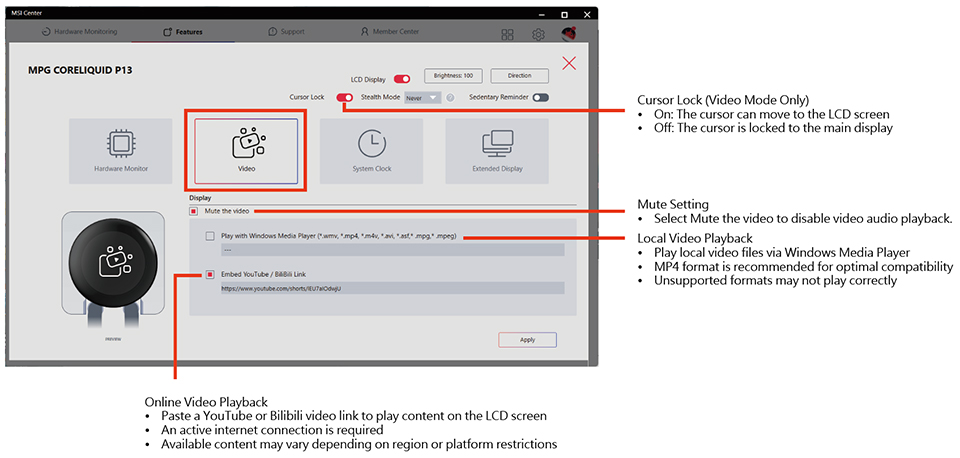
The P13's screen can also play videos from your PC or from the web. Two options available:
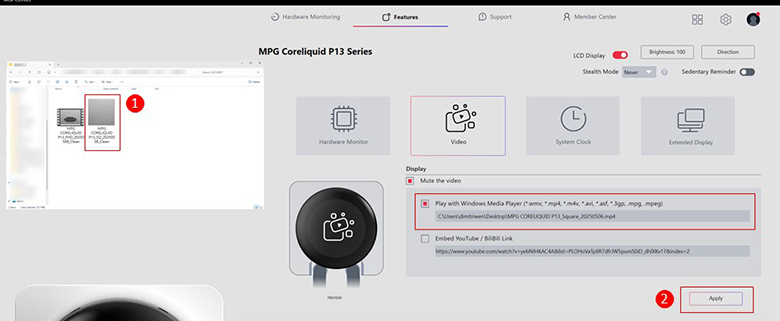
Local Video Playback
1. Select a file from your system
2. Click Apply — the video loops automatically
How to Play Online Videos via YouTube or BiliBili Link
1. Paste a direct YouTube or BiliBili video URL
2. Hit Apply to begin streaming
Note: Playlist links are not supported. Only direct video URLs will work.
There’s even a Mute toggle for audio control — though the screen itself doesn’t have speakers, this helps manage content quietly.
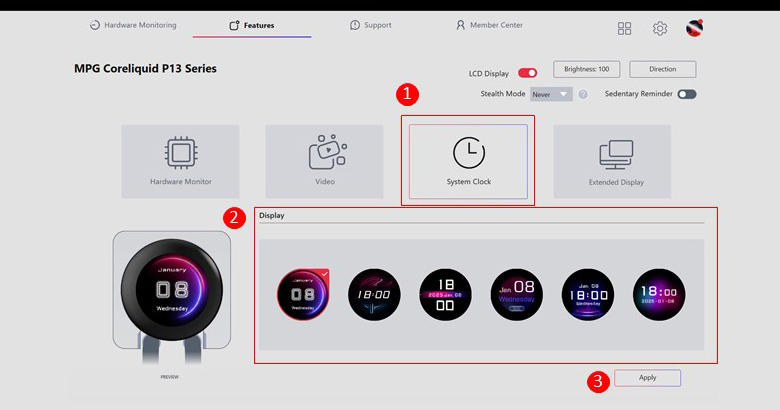
How to Display a System Clock on the LCD Screen
Need something functional and aesthetic? System Clock Mode offers six stylish, animated clock interfaces.
Just pick your favorite and click Apply.
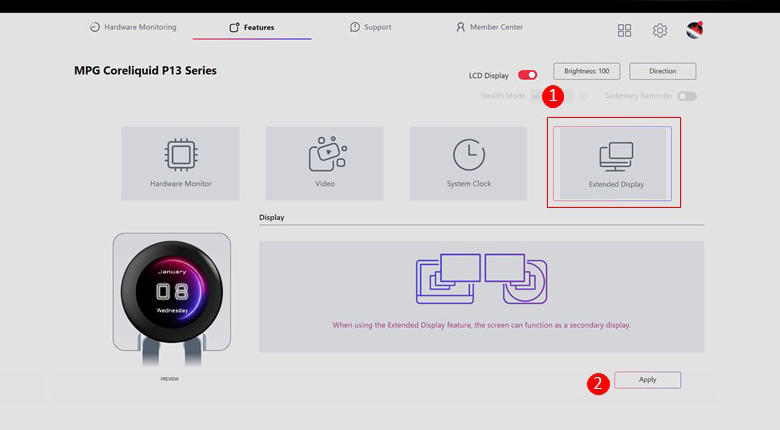
What is Extended Display Mode and How to Use It
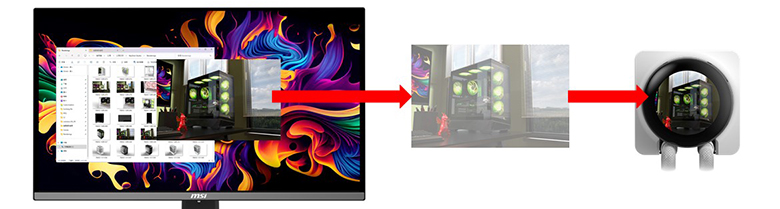
This advanced mode turns your cooler’s screen into a secondary display — yes, really.
1. Drag and drop images directly onto the P13 screen
2. Showcase static wallpapers, animated graphics, or system branding
3. Display full-screen content for aesthetic or functional purposes
Important: Due to the round screen shape, text-heavy files (like Excel or Word) and UI-heavy apps (like games or control panels) may not display clearly. Stick to visual content for the best results.
Final Thoughts: More Than Just a Cooler
The MPG CORELIQUID P13 Series isn’t just an AIO cooler — it’s an interactive part of your system. Paired with MSI CENTER, it delivers an immersive and customizable experience.
Whether you're a performance junkie, a creative modder, or someone who just wants to show off a GIF of your cat while keeping your CPU cool — P13’s LCD UI, powered by MSI CENTER, delivers.
Ready to try it yourself?
Download the latest version of MSI CENTER and bring your P13 screen to life.
Q: Why we strongly recommended to install the latest software and update the firmware to P13_20251204v01?
A: This update focuses on improving cursor behavior on the LCD screen to enhance overall usability. After updating the firmware and installing the latest version of MSI Center, the cursor movement can be managed more effectively across different display modes.
In Hardware Monitor and Clock modes, the cursor is restricted from moving onto the LCD screen, helping ensure smoother operation on the main display. In Video mode, users can choose whether to enable or disable cursor restriction based on their preference. In Extended Display mode, cursor movement remains unrestricted, allowing full use of the screen as a secondary display.
Q: Some users have reported that when the main monitor is turned off, the primary display may switch to the LCD screen on the liquid cooler. How can this be handled?
A: This behavior may occur in certain setups when a DisplayPort (DP) connection is used. When the main monitor is powered off, the operating system may temporarily reassign the active display, which can cause open windows to appear on the cooler’s LCD screen.
In most cases, turning the main monitor back on will automatically restore the original display arrangement. For a more consistent experience, we recommend using an HDMI connection for the main monitor, as this scenario does not typically occur with HDMI. Users may also verify the primary display setting in Windows. If the display layout does not return as expected, restarting the system will reinitialize the display configuration.
Q: Some users previously reported that after installing the MPG CORELIQUID P13 Series, the main monitor could not enter sleep mode. Has this been resolved?
A: At present, when a display sleep timer is set in the system’s power settings, both the main monitor and the LCD screen on the liquid cooler will enter sleep mode at the same time. This is because the operating system does not support setting separate sleep timers for individual displays. As a result, the sleep behavior of both screens is currently linked and functions together.